

How to dictate in Ozeki Chat using Ozeki Voice Keyboard
This guide demonstrates how to use Ozeki Voice Keyboard to dictate messages in Ozeki Chat. Instead of typing your messages manually, you can hold the hotkeys, speak into your microphone, and have the transcribed text pasted automatically into the active chat input field.
Prerequisites
Before proceeding, make sure both applications are installed and configured on your system. You will need Ozeki Chat: you can download it from the Installation page and follow the Quick start guide to get it up and running. You will also need Ozeki Voice Keyboard installed and configured: follow the Ozeki Voice Keyboard Quick Start Quide to complete the initial setup.
Steps to follow
- Select or create a conversation
- Focus the message input field
- Dictate your message using Ozeki Voice Keyboard
How to dictate in Ozeki Chat video
The following video shows how to dictate a message in Ozeki Chat using Ozeki Voice Keyboard step-by-step.
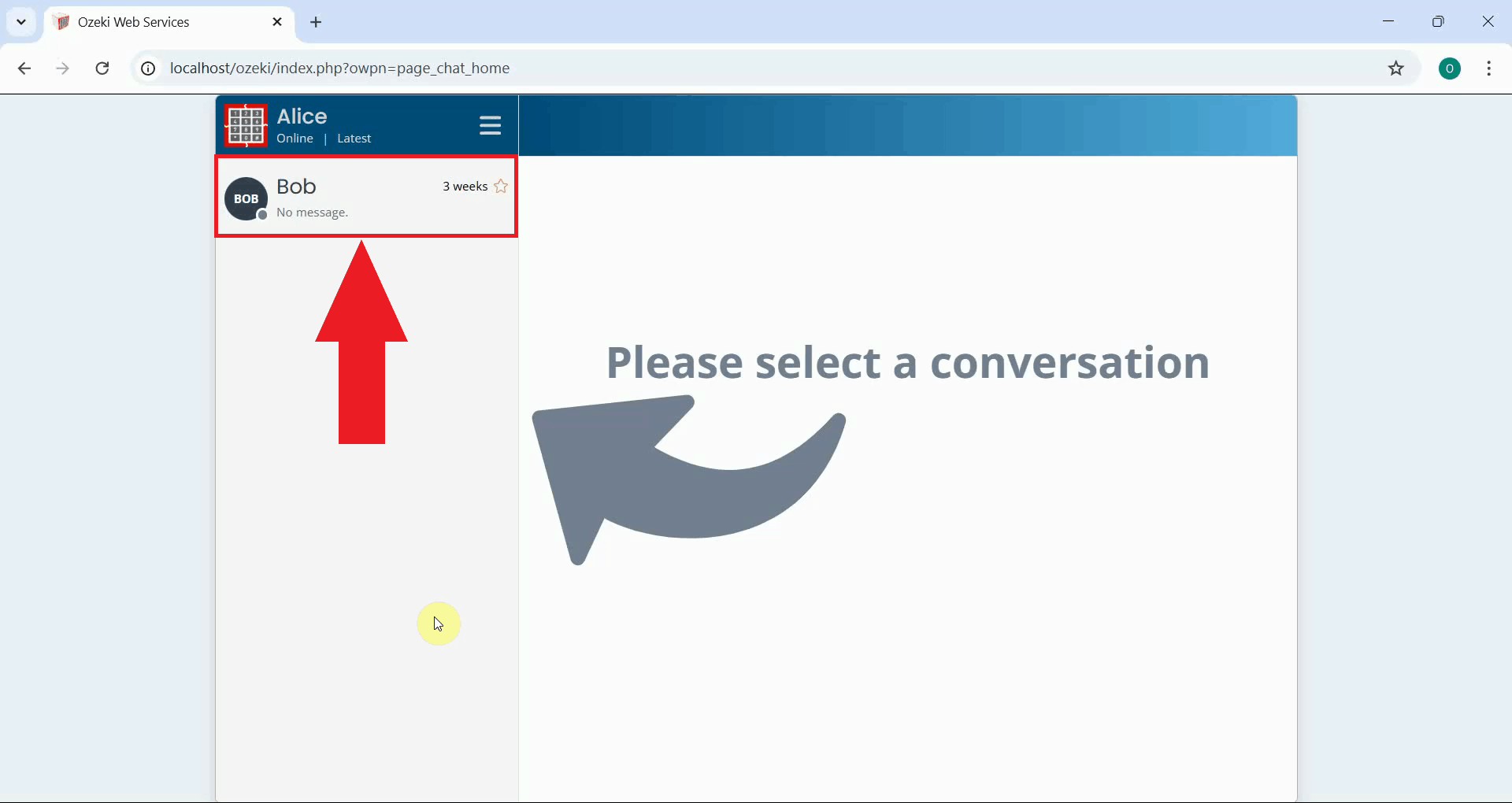
Step 1 - Select or create a conversation
Open the Ozeki Chat interface and select an existing conversation from your contacts list, or start a new one by adding a friend. Ozeki Chat allows you to communicate with other registered users on the same Ozeki system (Figure 1).
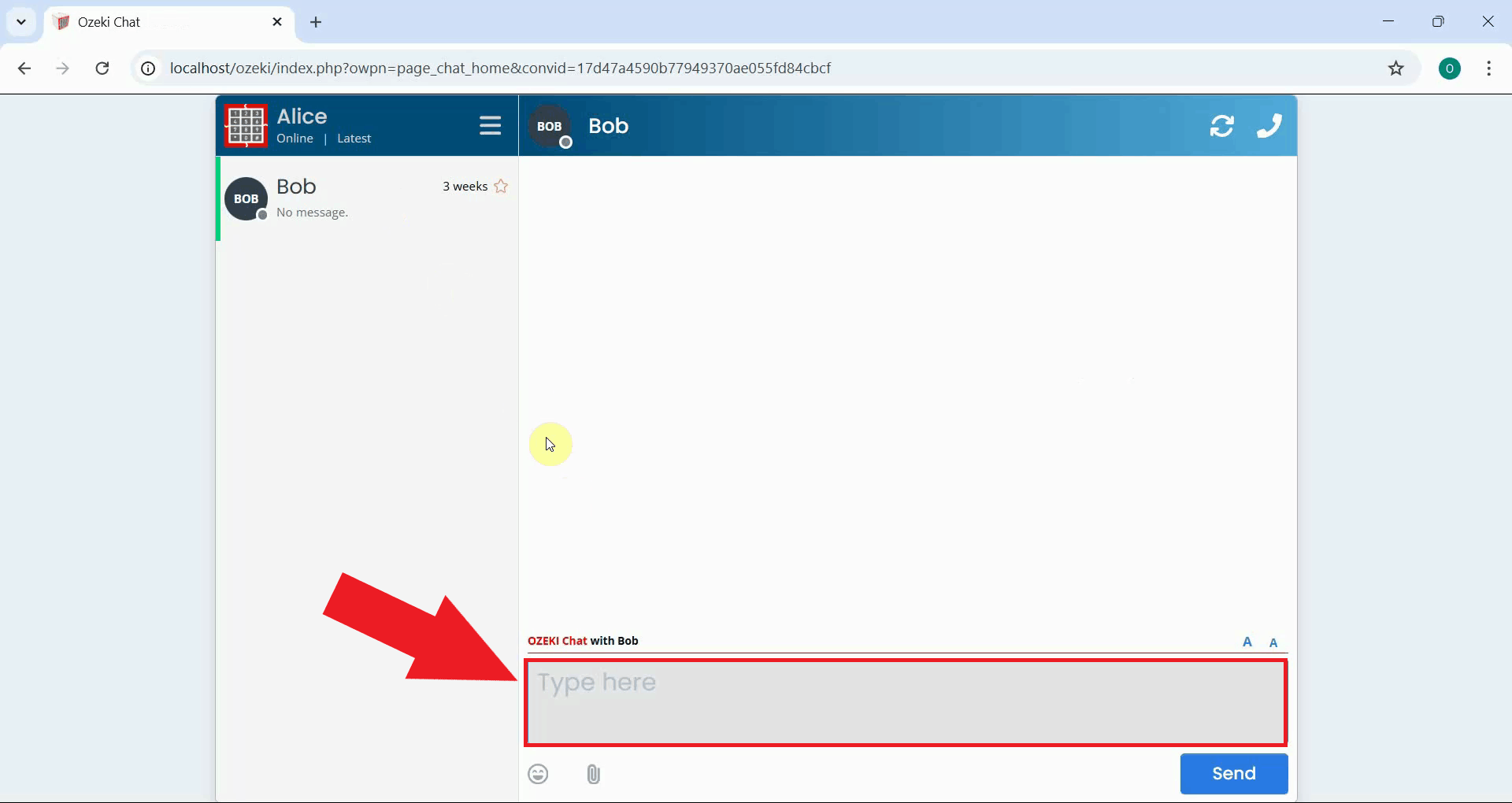
Step 2 - Focus the message input field
Click into the message text area at the bottom of the conversation window to make it the active input field. Ozeki Voice Keyboard will paste the transcribed text into whichever field is currently active (Figure 2).
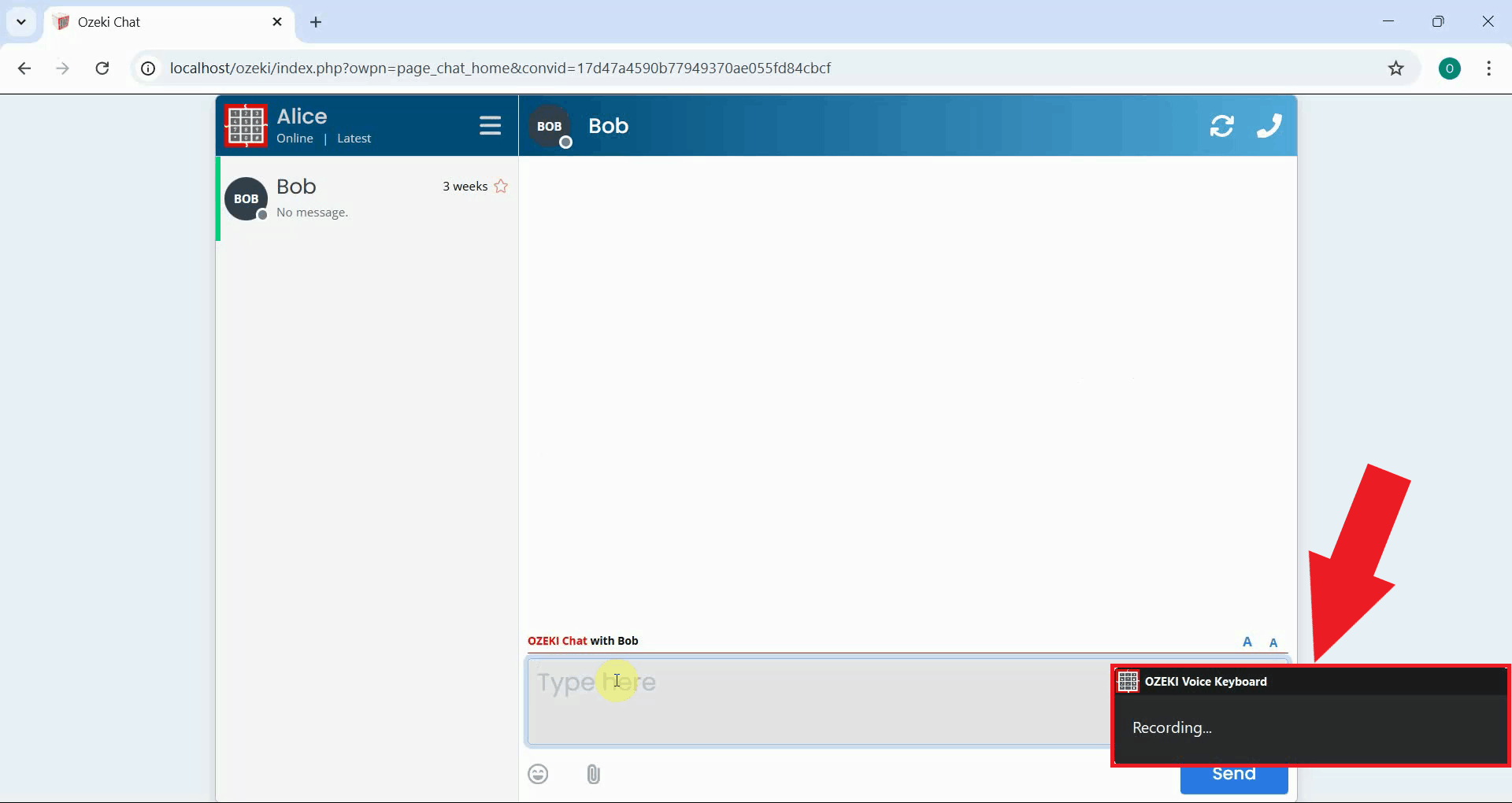
Step 3 - Dictate your message using Ozeki Voice Keyboard
Press and hold Ctrl + Alt (or your configured hotkeys) and speak your message into the microphone. Ozeki Voice Keyboard will record your voice for as long as the keys are held down. Once you have finished speaking, release the keys to send the recording for transcription (Figure 3).
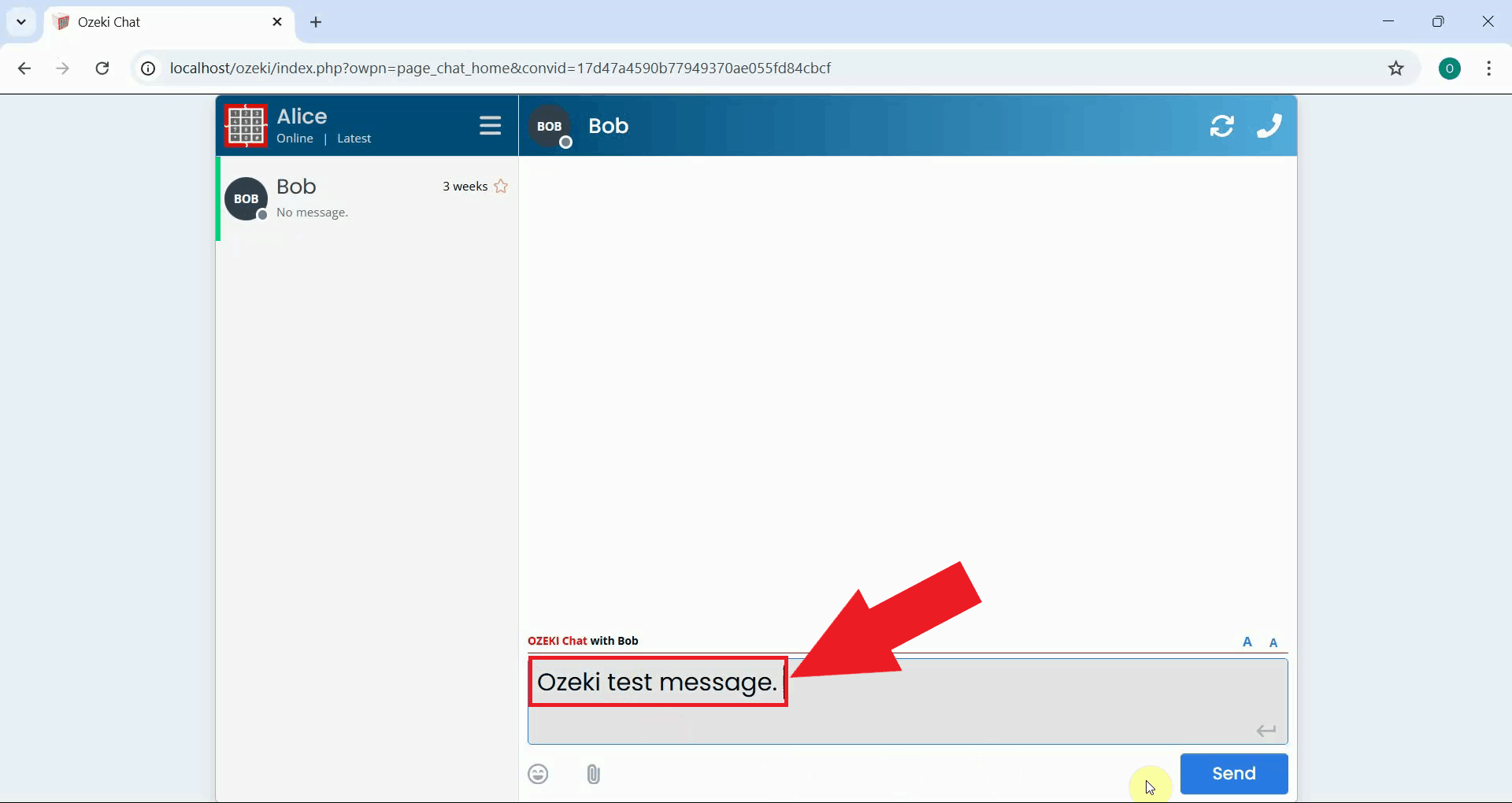
After the transcription completes, the converted text is automatically pasted into the chat input field. If needed, you can edit the text manually or repeat the dictation to replace it. Press Enter or click the send button to deliver the message (Figure 4).
Final thoughts
You have successfully used Ozeki Voice Keyboard to dictate a message in Ozeki Chat. This approach lets you compose and send messages hands-free, which is especially useful during busy workflows where typing is not convenient. The same technique works in any other input field within the Ozeki Chat interface.